
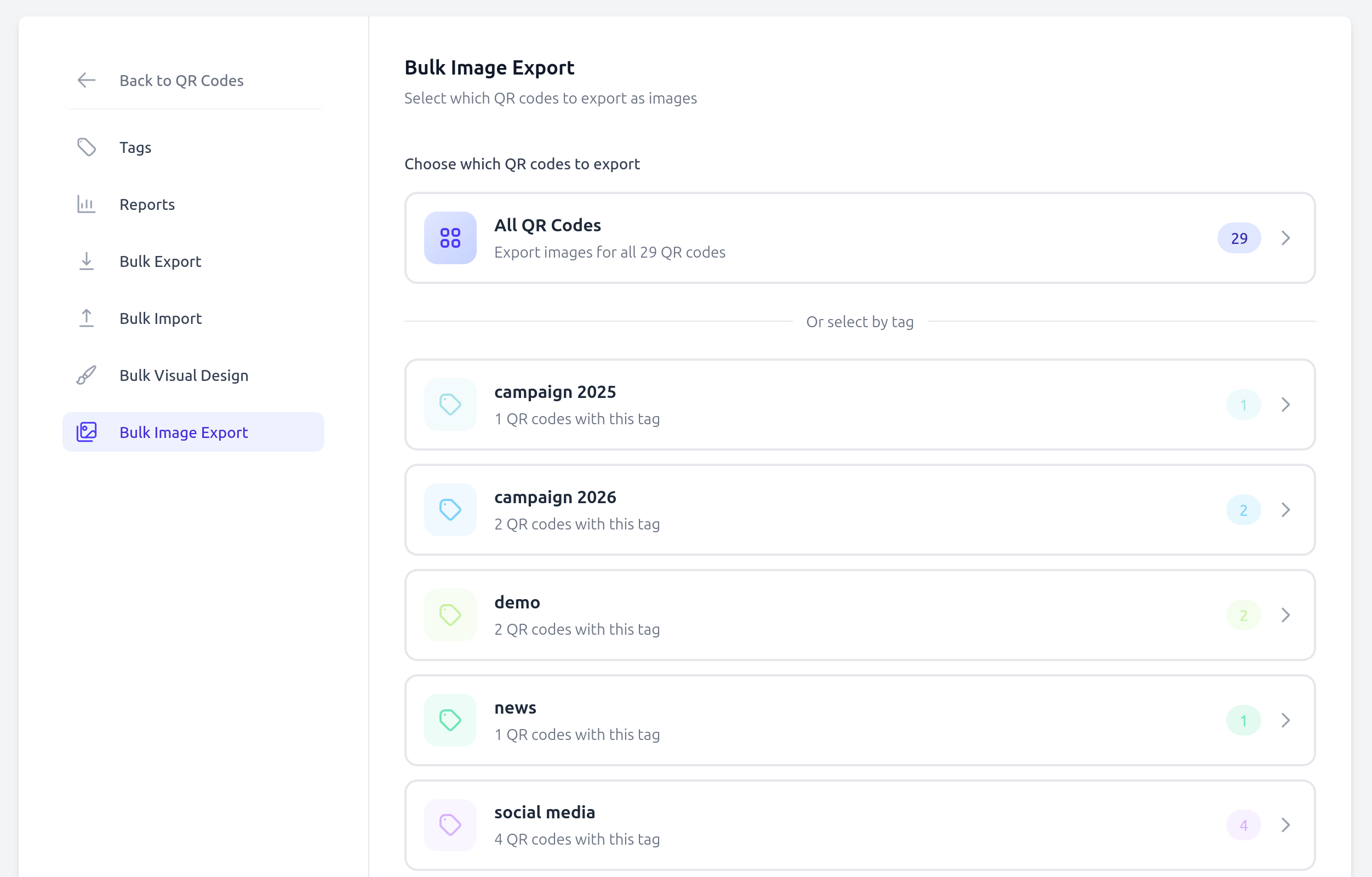
The bulk image export generates a ZIP archive containing every QR code image in your team. You can also export a subset by filtering with a tag.
How to export
- Go to QR Codes > Bulk image export.
- Choose the scope: all QR codes or a specific tag.
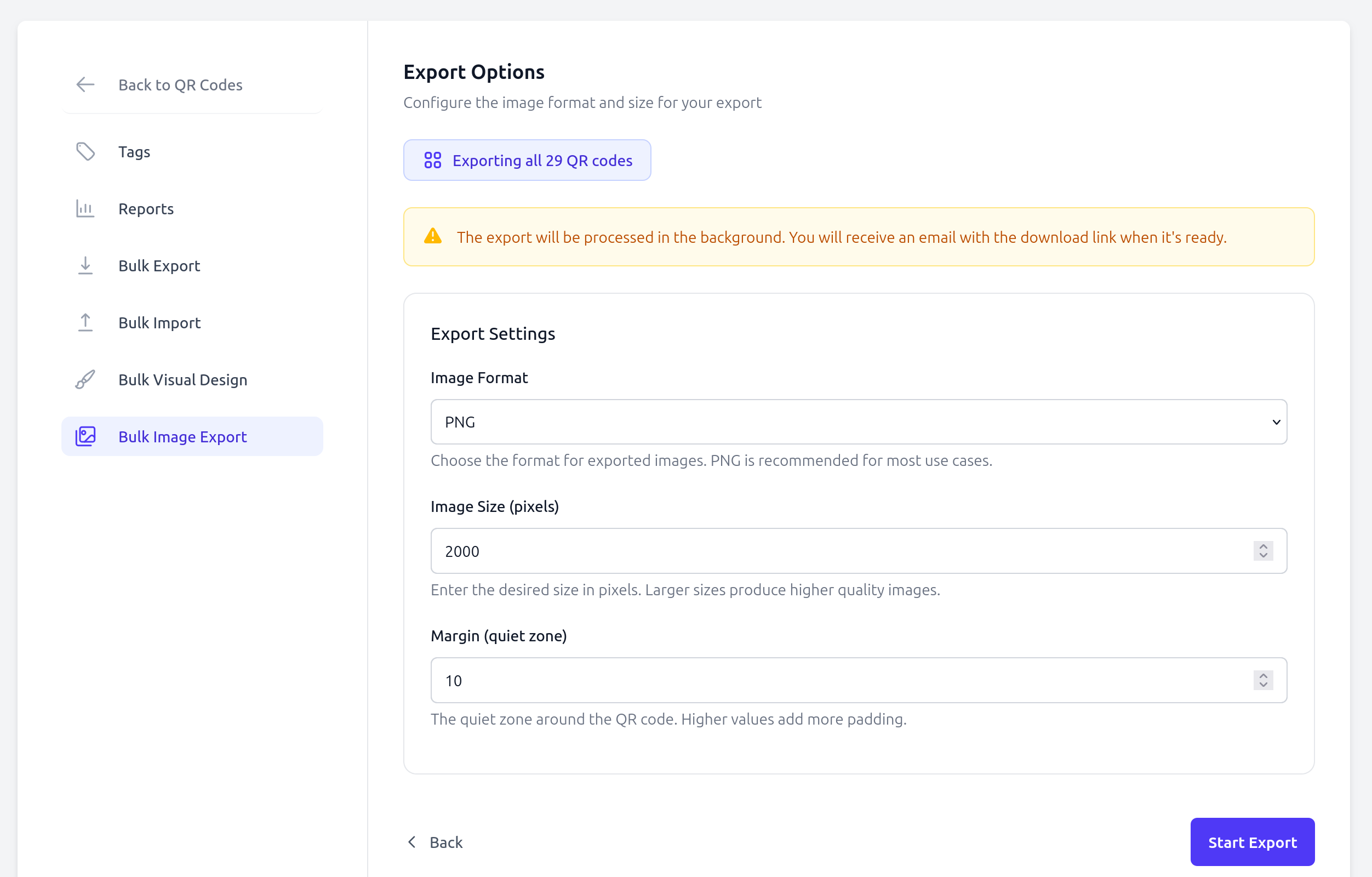
- Configure the export options:
| Option | Default | Range | Description |
|---|---|---|---|
| Format | PNG | PNG, JPEG, WebP, SVG | Image file format |
| Size | 2000 px | 100 - 5000 px | Width and height in pixels |
| Margin | 10 px | 0 - 30 px | Quiet zone around the QR code |
- Click Export. The images are generated in the background.
- Once ready, a download link is sent to your email.
File naming
- ZIP file:
qr-codes-{team-or-tag}-{timestamp}.zip - Images inside:
{qr-code-name}-{timestamp}.{format}
If two QR codes share the same name, a counter is appended (e.g., -1, -2).
Good to know
- Each QR code image uses the visual design currently saved on that code (colors, logo, shape).
- If an individual image fails to generate, it is skipped and the rest of the archive is still delivered.
- For a single QR code, use Download a printable QR code instead.
Available on: Business and Enterprise plans.