The bulk visual design feature lets you apply appearance settings to many QR codes at once, ensuring a consistent look across your team's codes.
How to use
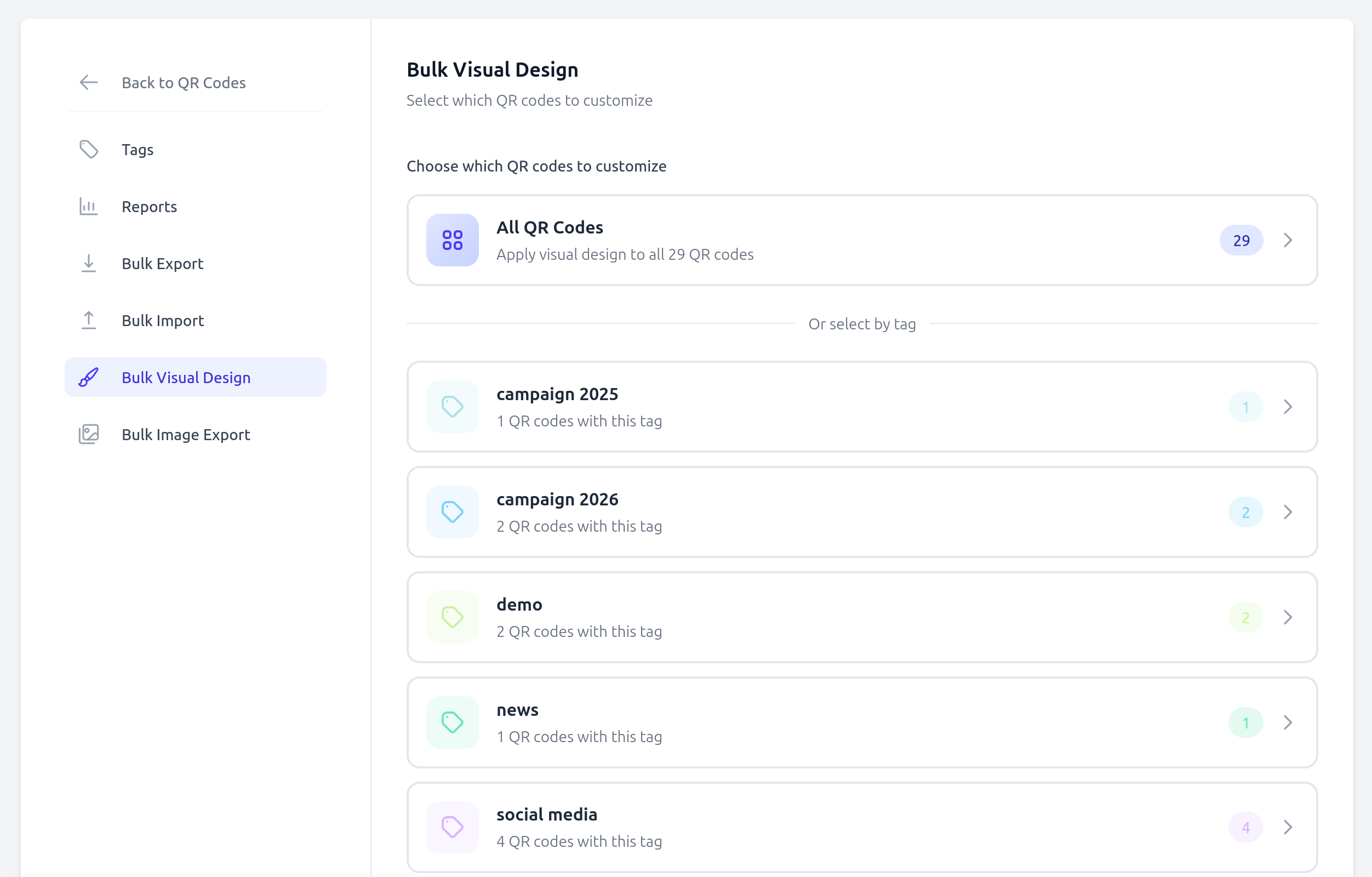
- Go to QR Codes > Bulk visual design.
- Choose the scope: all QR codes or a specific tag.
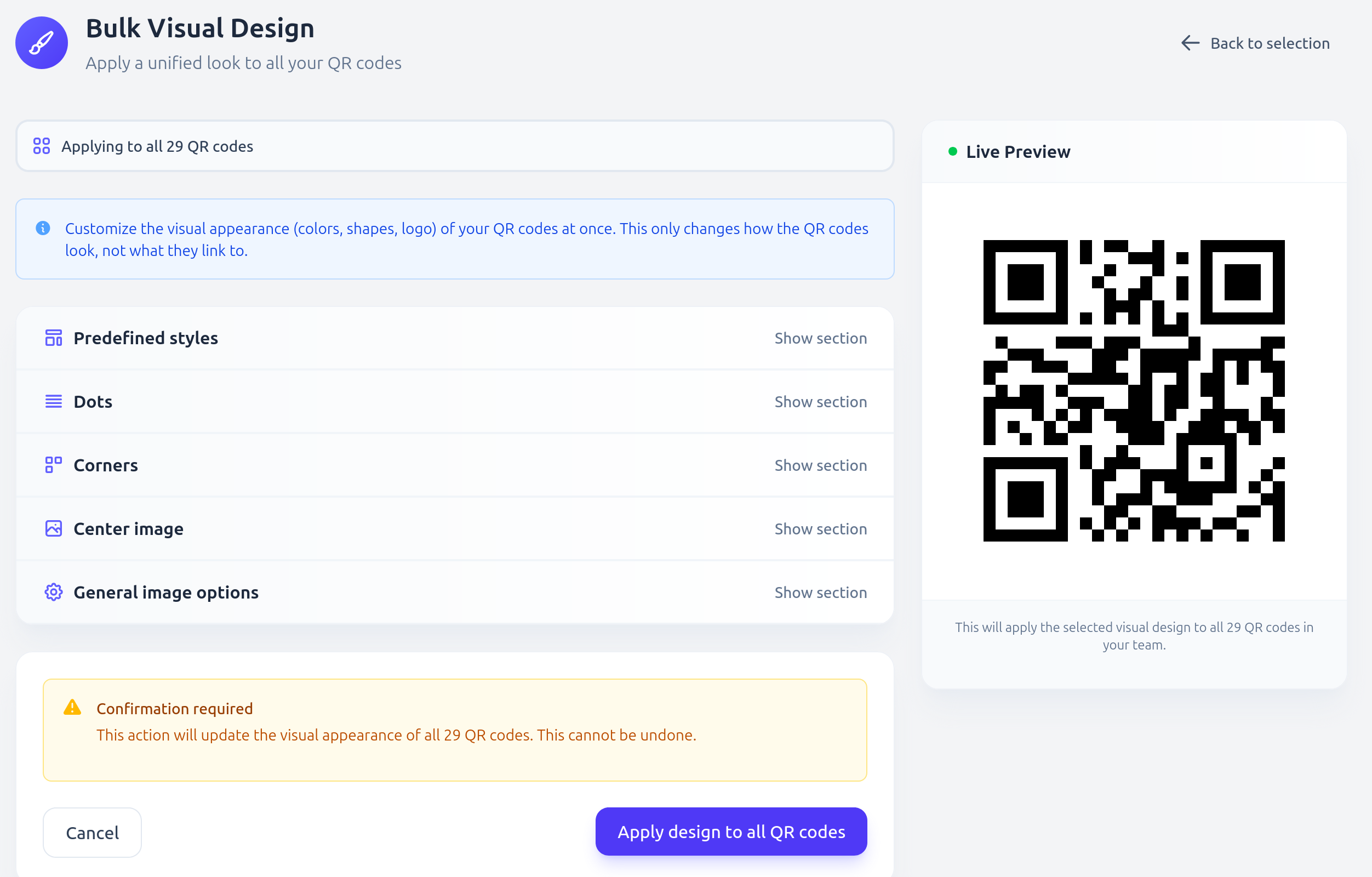
- Customize the design using the editor. A live preview updates as you adjust settings.
- Click Apply. The update is processed in the background.
What can be updated
| Category | Properties |
|---|---|
| Shape & layout | Square or circle shape, margin (0-40 px) |
| Dots | Color, style (square, rounded, dots, classy, classy-rounded, extra-rounded) |
| Background | Background color |
| Corner squares | Color, style (square, dot, extra-rounded) |
| Corner dots | Color, style (square, dot) |
| Center image | Predefined logo, image size, image margin, hide dots behind image |
| Error correction | Level: L, M, Q, or H |
You can also start from a preset design and adjust from there.
Good to know
- A built-in contrast checker warns you if the selected colors may make the QR code difficult to scan, especially in low-light conditions.
- Only dynamic QR codes are updated. Drafts and QR codes pending removal are excluded.
- Custom uploaded logos are cleared during bulk operations. Only predefined logos can be applied in bulk.
- To save a design for future reuse, see Style Library.
- Each bulk update is recorded in the team's action log for audit purposes.
Available on: Premium, Business, and Enterprise plans.