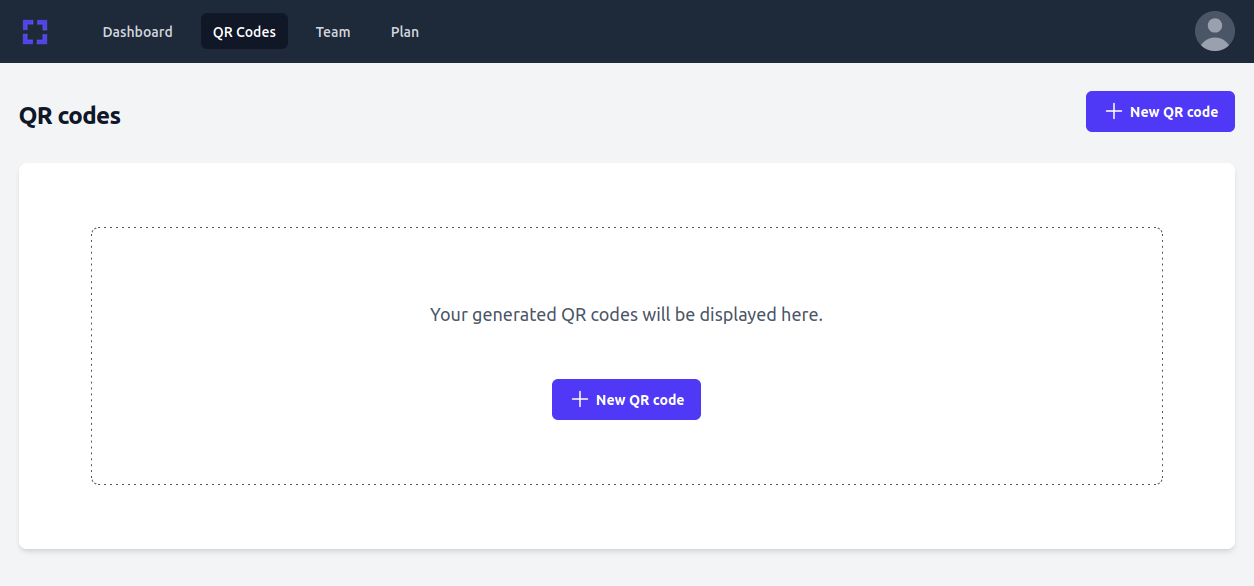
After signing up, you can immediately create a QR code by clicking the "+ New QR Code" button, as shown in the screenshot below:
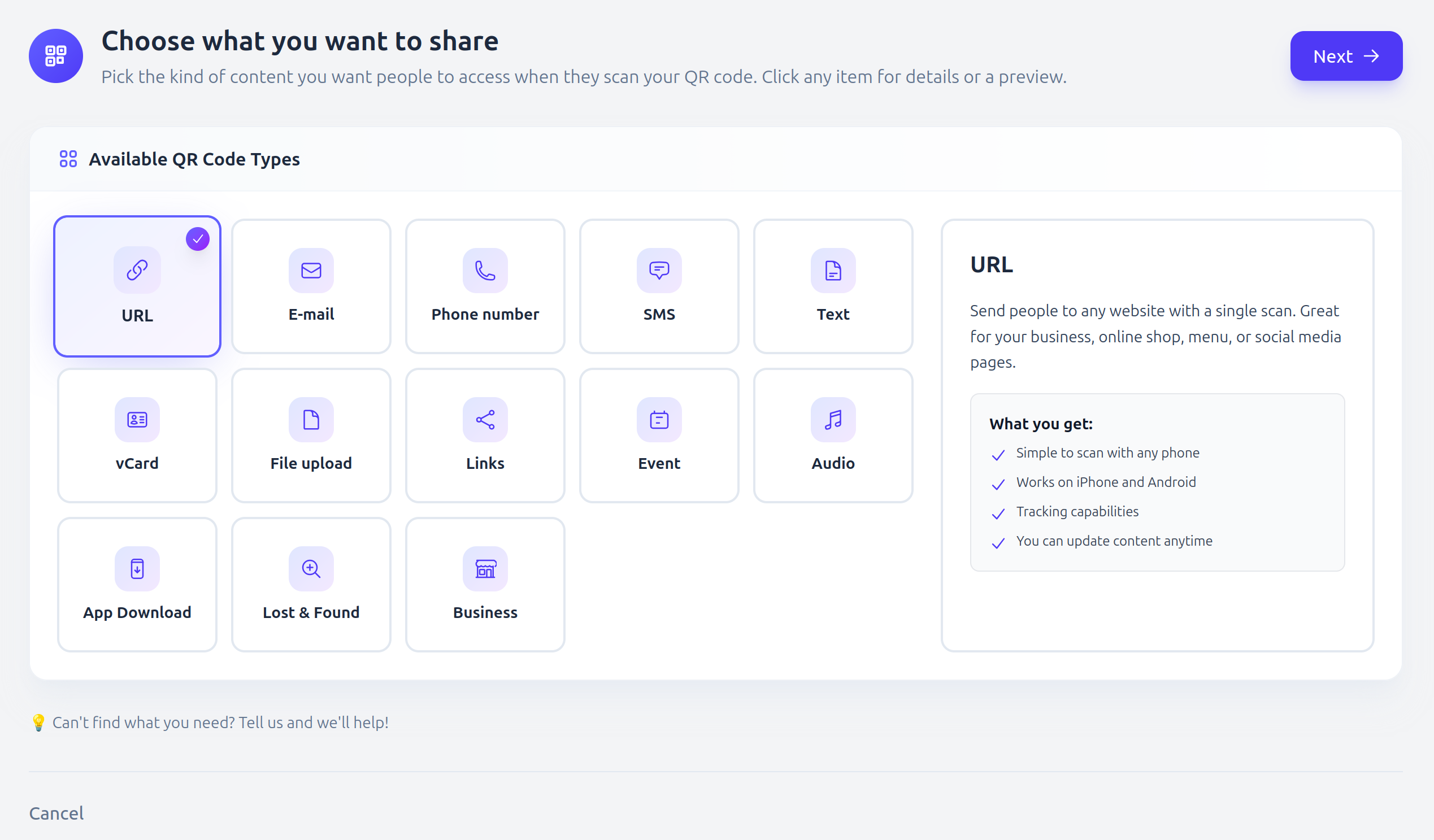
Next, select the type of QR code you want to generate:
You can filter the available options to show only dynamic codes or only static codes. If you don’t select a mode here, you’ll be asked to choose one in the next step—provided the selected type supports both modes.
For this example, we’ll choose the URL type and click Next.
The next step asks you to provide the destination:
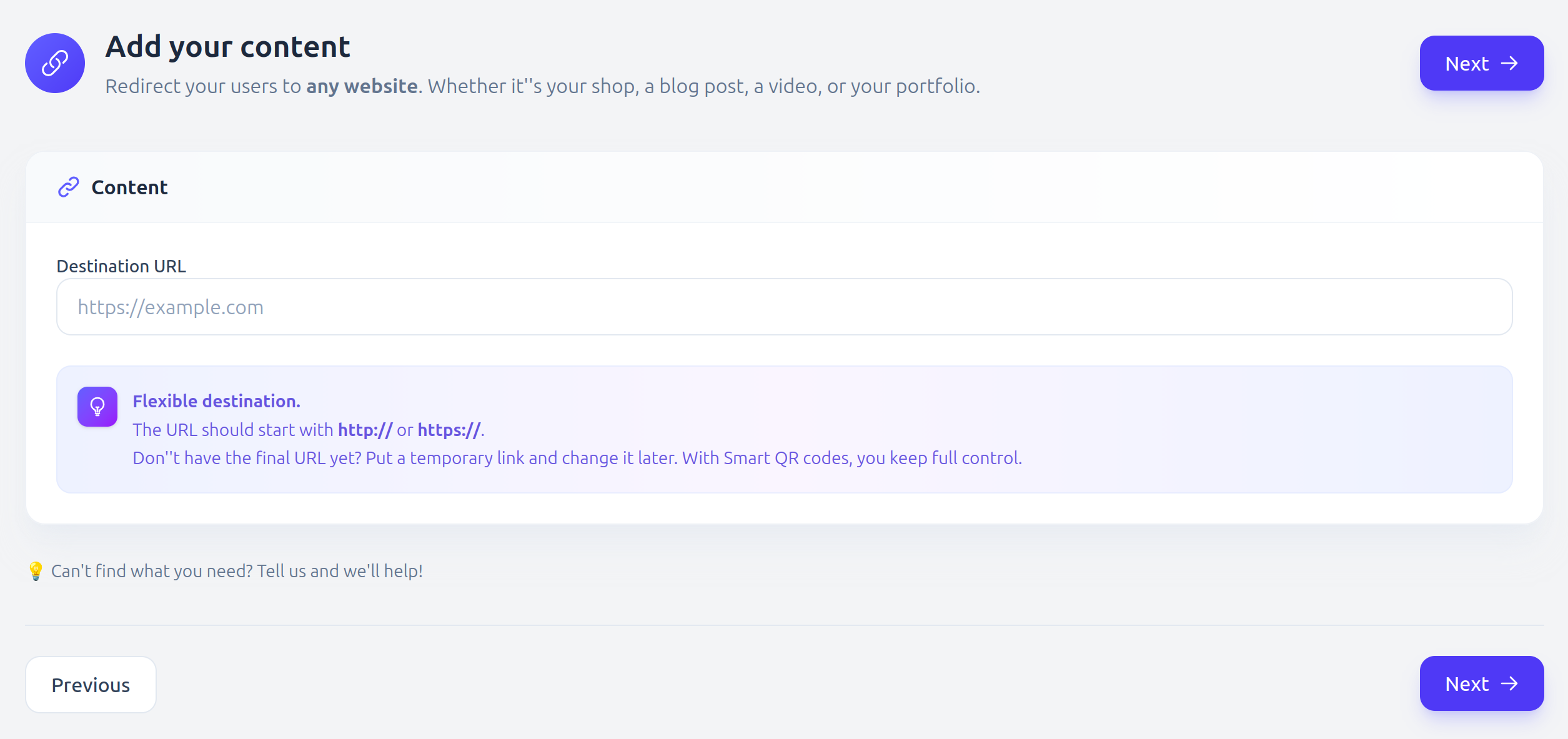
For this example, we’ll enter our domain so that the QR code redirects to https://twilee.com.
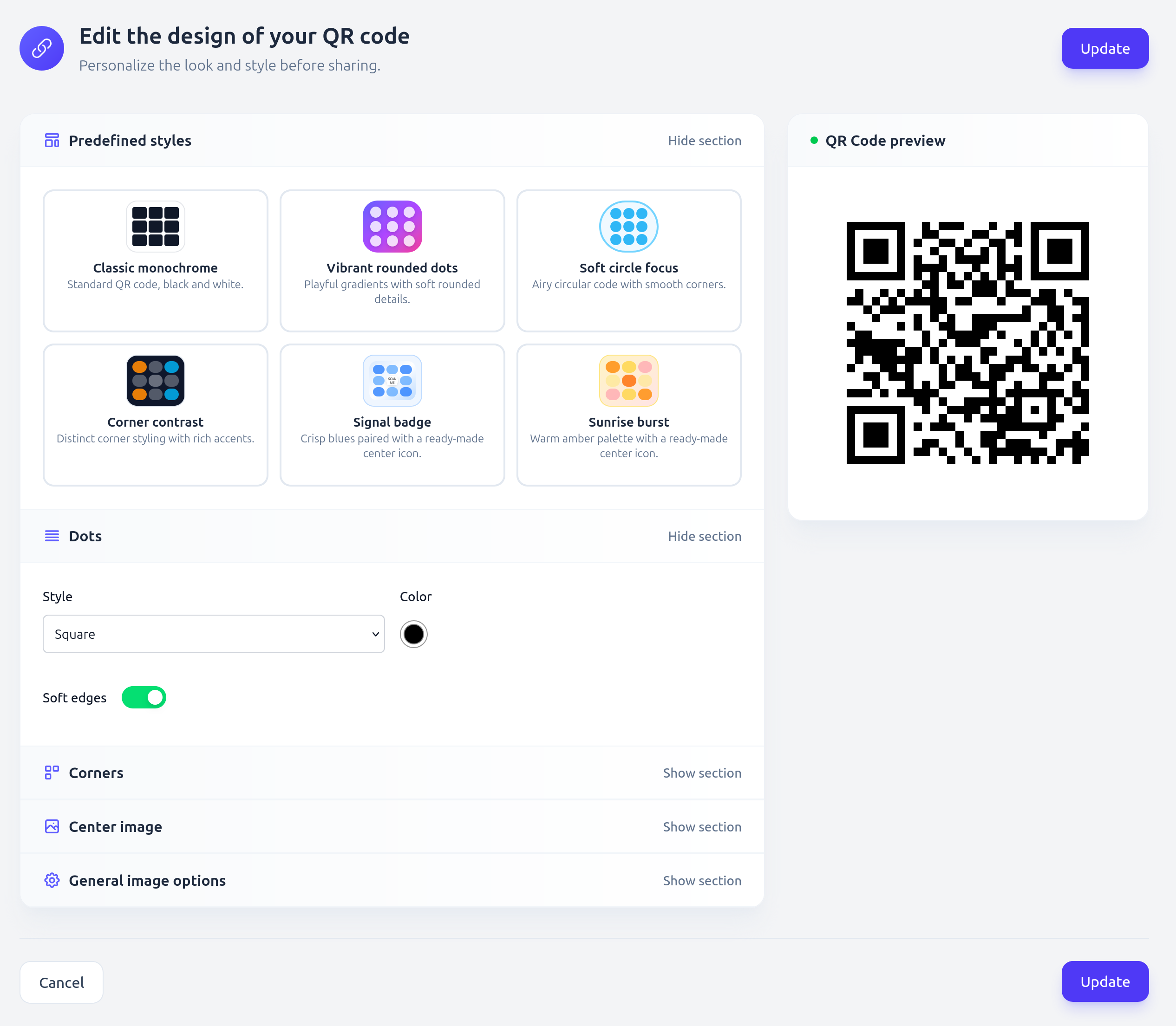
In the final step, you can customize the QR code’s design: change colors, add a label, insert a logo, or upload your own image. You can also set the desired quality for the QR code.
Contrast checker
Twilee includes a built-in contrast checker that analyzes the colors you pick for dots, background, and corners. If the contrast between these colors is too low, a warning is displayed to let you know the QR code may be difficult to scan, especially in low-light conditions.
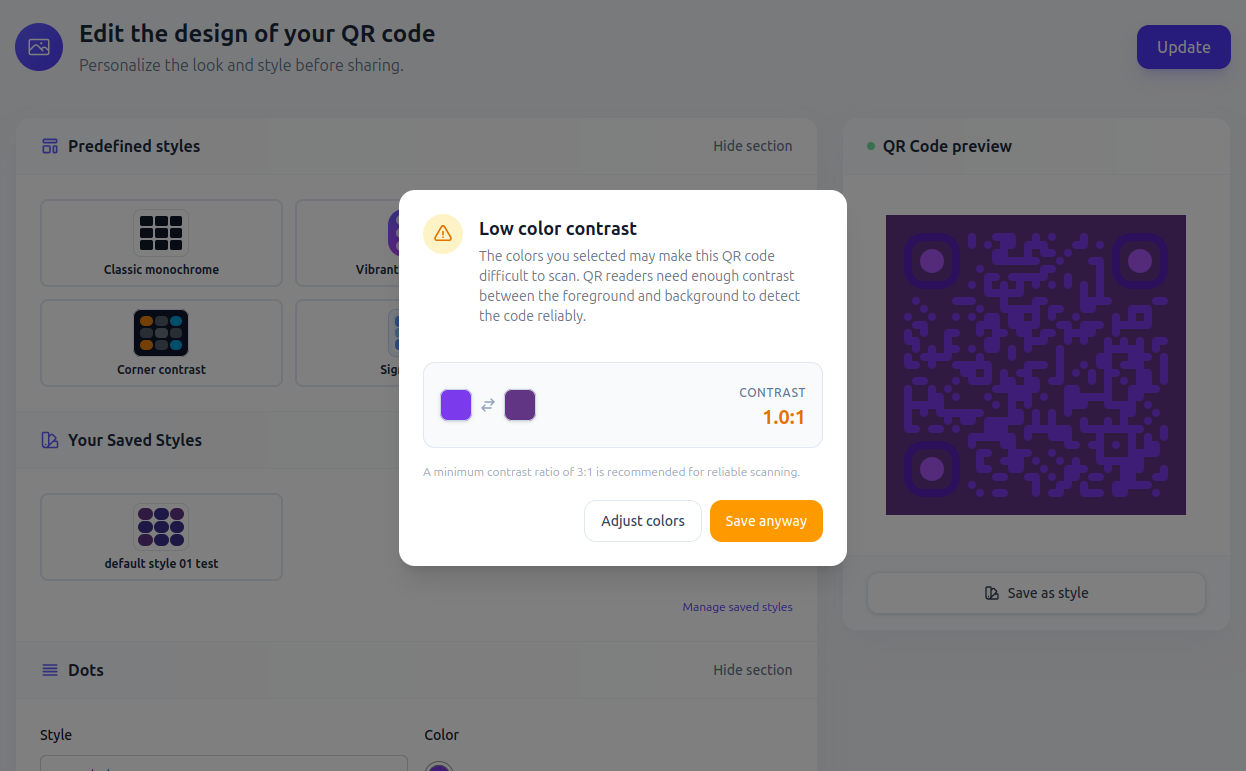
Choosing colors with sufficient contrast ensures your QR code remains reliably scannable across different environments and devices.
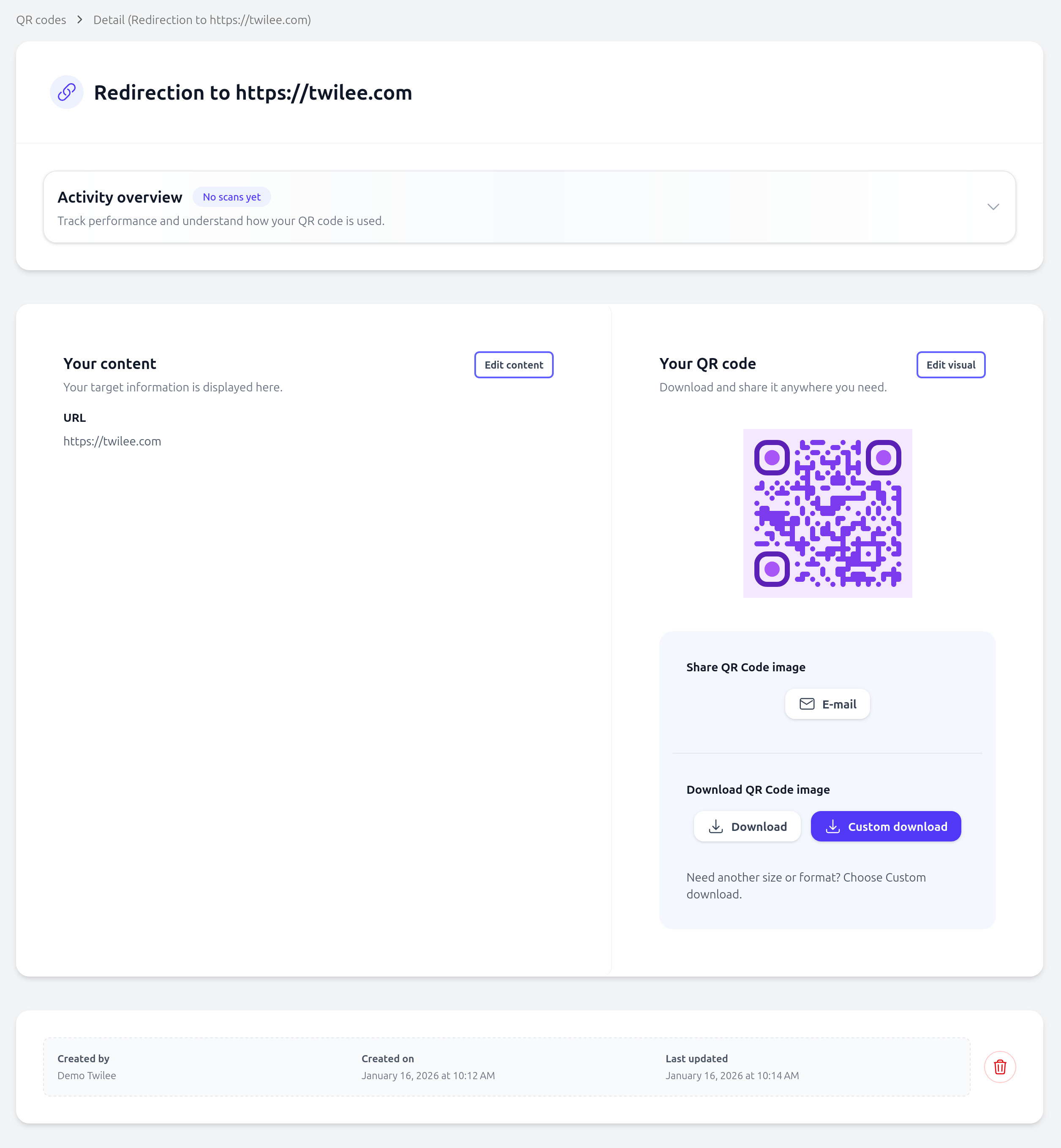
After clicking Finish, you’ll be redirected to the QR Code created.