
When a QR code is deactivated, visitors see an "unavailable" page instead of the QR code content.
Default page
On all plans, a standard Twilee inactive page is displayed when someone scans a deactivated QR code.
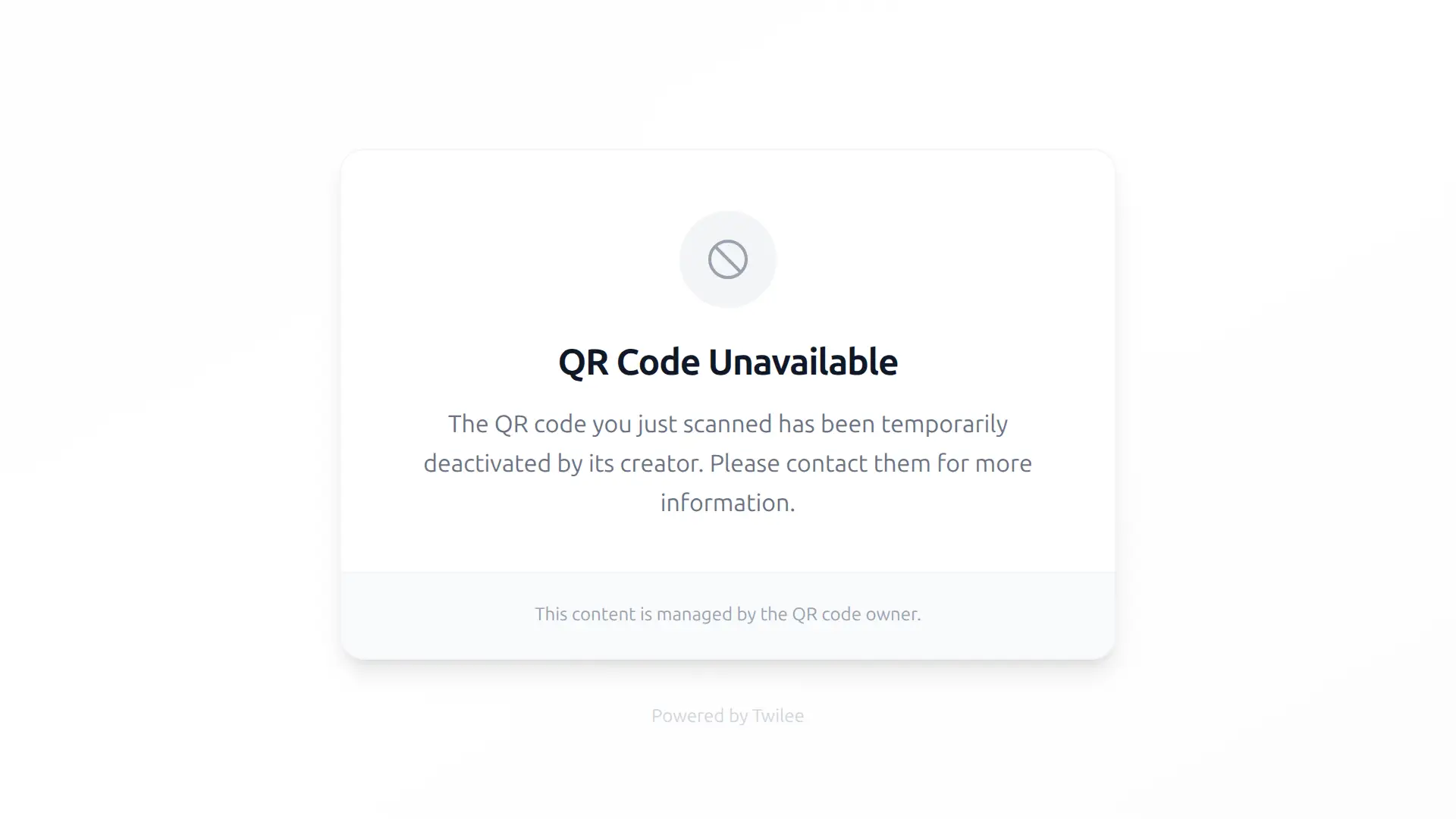
Custom branded page
Starting from Premium, you can replace the default page with a branded version that matches your identity. Go to QR Codes > Inactive page settings from the management menu and switch to Custom mode.
| Field | Description | Limit |
|---|---|---|
| Logo | Image displayed at the top of the page | Max 2 MB |
| Title | Heading shown to visitors | 100 chars |
| Message | Body text, supports rich text formatting (Markdown) | No limit |
A preview button lets you see the result before saving.
Good to know
- The inactive page settings apply to all deactivated QR codes in your team. Individual QR codes cannot have separate inactive pages.
- Removing the logo resets the page to a text-only layout.
Custom page available on: Premium, Business, and Enterprise plans.