
Tags let you categorize and filter your QR codes. Each tag has a name and a color, making it easy to visually group codes by campaign, location, or any criteria you choose.
Create and manage tags
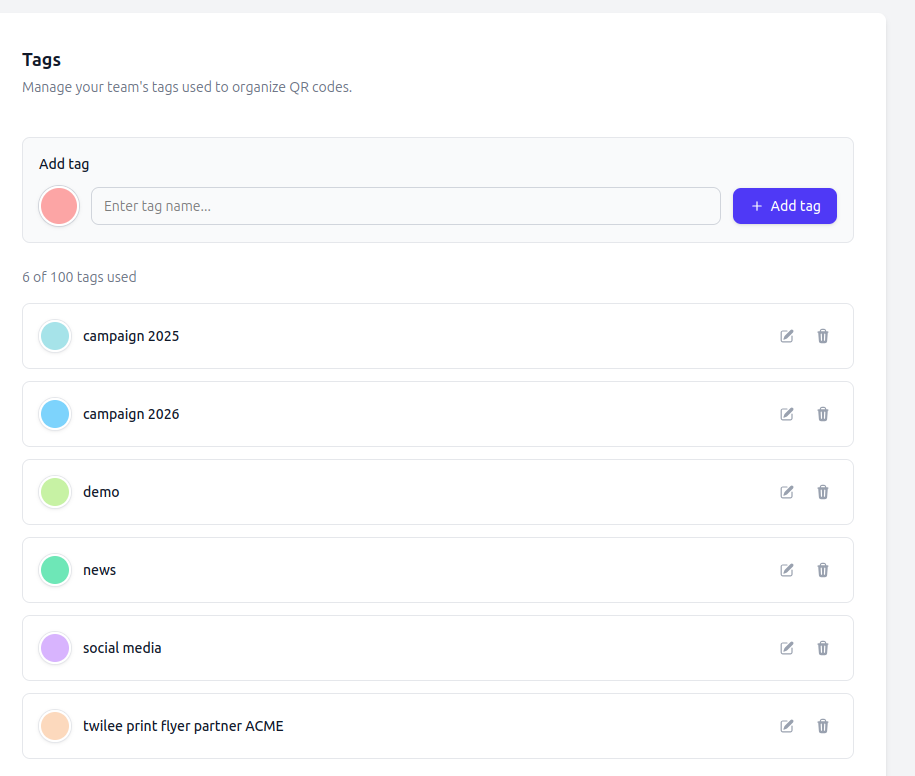
Go to QR Codes > Tags to manage your team's tags. From this page you can:
- Create a new tag with a name and color.
- Rename an existing tag inline.
- Change the color of a tag.
- Delete a tag. Deleting a tag removes it from all associated QR codes.
24 predefined colors are available, or you can use any custom hex color.
Assign tags to QR codes
Open any QR code and add or remove tags from the detail page. You can assign existing tags or create new ones inline.
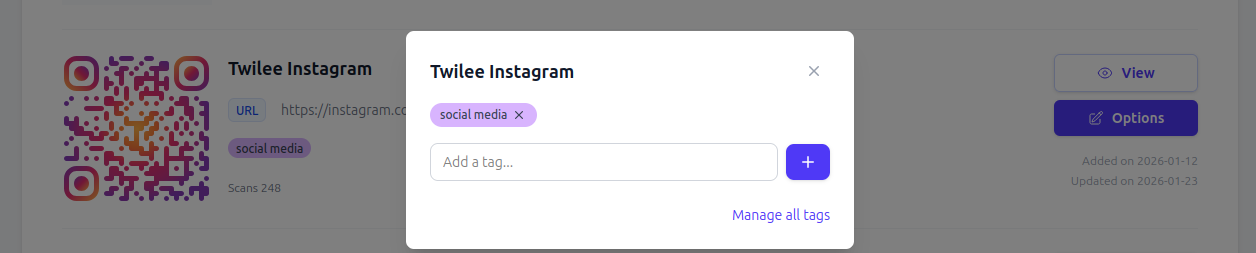
Tags are also assigned automatically during bulk import: all QR codes from a single import receive a timestamped tag (e.g., import-2026-02-22-143022).
Filter by tag
On the QR codes listing page, use the tag filter to display only QR codes with a specific tag. Tags are also used as scope selectors in bulk visual design and bulk image export.
Limits
- Maximum 100 tags per team.
- Tag names must be unique within your team (max 50 characters).
Available on: all plans.